Need ideas of where to read up on the latest medical education research? Have a brilliant manuscript describing your curricular innovations but not sure where to publish? Need to find multimedia resources for medical education? Looking for curricular objectives to help guide your medical education project?
Look no further than the Medical Education Subject Guide available on the UCSF Library's website. The direct URL to this guide is at http://guides.library.ucsf.edu/meded.
OR you can navigate from the Library's website from the Classes, Consulting, & Help dropdown menu by selecting the Subject Guides listing. The Medical Education guide is listed alphabetically on the complete guides page.
(1) Browse the yellow tabs to explore the Library's resources available to assist in your medical education research needs.
(2) Read the latest published medical education research by UCSF medical educators.
(3) Download PDF tipsheets summarizing literature searching tips for how to search PubMed and other key databases geared to medical education.
(4) Contact me via chat, email, or phone from the right margin of the guide.
Please feel free to send me any suggestions you have for content you'd like to see on this subject guide. Bookmark this site today! http://guides.library.ucsf.edu/meded
Showing posts with label tools. Show all posts
Showing posts with label tools. Show all posts
Wednesday, July 6, 2011


Saturday, February 26, 2011
Using Mind Mapping as a Teaching Tool
How many of you remember the grade school exercise of diagramming sentences? How many of you can claim that you enjoyed the exercises? Very few of you out there, I would guess.

To this day, if you were to ask me how I know that the subject comes before the predicate followed by the complement, I would have no good answer for you. However, I am able to write and read a sentence and know that it is written in proper English grammar. My fifth grade teacher would be beaming with pride that I am able to intuitively retain the grammar she taught me decades ago.
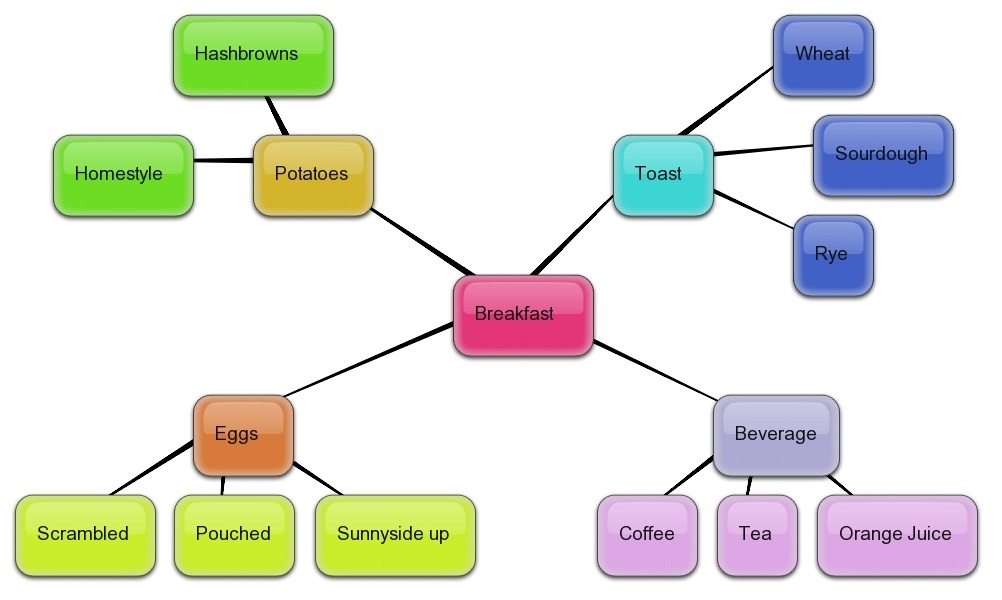
So what does this all have to do with mind mapping? Wait a second...what IS mind mapping. It is a way to visualize a concept by drawing out the relationships between several ideas. Here is a bare bones example of how I used mind mapping to brainstorm what my breakfast menu could look like.

On a more complex level, you can use mind mapping as a study and teaching tool. Below is a mind map created by allergist and immunologist Dr. Dimov and colleagues at the University of Chicago and LSU to diagram the concept of adhesion molecules.

To find out more about how to use mind mapping as a teaching tool, you should read this article written by a fourth-year medical student in the UK:
Edwards, S, & Cooper, N. (2010). Mind mapping as a teaching resource. The clinical teacher, 7(4), 236-9.
ABSTRACT
Be sure to check out my previous blog post about free and easy to use mind mapping tools. There are several sophisticated mind mapping software that you can purchase as well. Go forth and map!

To this day, if you were to ask me how I know that the subject comes before the predicate followed by the complement, I would have no good answer for you. However, I am able to write and read a sentence and know that it is written in proper English grammar. My fifth grade teacher would be beaming with pride that I am able to intuitively retain the grammar she taught me decades ago.
So what does this all have to do with mind mapping? Wait a second...what IS mind mapping. It is a way to visualize a concept by drawing out the relationships between several ideas. Here is a bare bones example of how I used mind mapping to brainstorm what my breakfast menu could look like.
Click on images below to see larger views
.
.

On a more complex level, you can use mind mapping as a study and teaching tool. Below is a mind map created by allergist and immunologist Dr. Dimov and colleagues at the University of Chicago and LSU to diagram the concept of adhesion molecules.

To find out more about how to use mind mapping as a teaching tool, you should read this article written by a fourth-year medical student in the UK:
Edwards, S, & Cooper, N. (2010). Mind mapping as a teaching resource. The clinical teacher, 7(4), 236-9.
ABSTRACT
BACKGROUND: Modern mind mapping has been around since the mid-1970s, having been developed in its current form by Tony Buzan. It works by taking information from several sources and displaying this information as key words in a bright, colourful manner. Mind maps have been described as an effective study technique when applied to written material.
CONTEXT: This paper looks at how to use mind mapping as a teaching resource, and was written as a result of the recent undergraduate 'Doctors as Teachers' conference at The Peninsula Medical School. INNOVATION: Mind mapping is a technique not often used or considered by many teachers. This paper looks at how a busy clinical teacher can apply this technique in a practical, useable way. This allows topics to be more interesting to students and makes both learning and teaching more enjoyable.
IMPLICATIONS: Mind mapping has many potential applications to clinical education, and can be adapted to many situations. It can be used as a teaching resource, as an aid to preparing and reviewing lectures, and the technique allows notes to be written and reviewed quickly, and most importantly enables information to be easily updated. Mind mapping can be used in many situations including problem-based learning, small-group teaching, in a one-to-one context, as an examination tool and for personal revision.
By training yourself to mind map the material you need to learn or teach, your brain will begin to integrate the information into a more second nature understanding. In this way mind mapping is like diagramming sentences, but a whole lot more enjoyable.
Be sure to check out my previous blog post about free and easy to use mind mapping tools. There are several sophisticated mind mapping software that you can purchase as well. Go forth and map!
Thursday, June 10, 2010
MedFools for Free Scutsheets
Med students and residents - help me out here:
Have any of you used MedFools before?

Their homepage has an item mentioning that their site has been blacklisted by the AAMC. Apparently, some medical school and residency applicants may have lifted sample essays from MedFools and unwisely used them in their own application.
Steering clear of this sticky issue, I wanted to point out a feature that looks quite helpful on this site: The downloadable scutsheets and fact sheets . These free resources can come in handy when gathering patient information and reminders of what to cover during the patient encounter. They're printable and convenient to stuff into your whitecoat pocket.
Subjects include scutsheets and fact sheets for:
- Medicine - General Wards - Pediatrics - OB/GYN - Psychiatry - USMLE (bacteria, fungus, and parasites charts)
Examples of some of these resources:
- H&P form for clerkships - http://www.medfools.com/downloads/megs-history-physical.pdf
- Peds Notes - http://www.medfools.com/downloads/pediatric_notes.pdf
- USMLE Parasites study chart - http://www.medfools.com/downloads/parasite.pdf
Give the site a once over and let me know what you think of this resource.
Wednesday, February 24, 2010
Use Jing to Create Quick Online Tutorials
For the past two years or so, I've been using Jing to produce quick online tutorials (aka "screencasts") that capture what I am doing on my computer screen. Jing, which is free, is a product of TechSmith, the company that produces Camtasia, which is not free.
Jing is great if you need to make quick online tutorials. Noteworthy features of Jing are:
* Record your voice narrating the tutorial
* Create a JPEG image of any part of your screen that can be labeled, annotated, and highlighted
* Immediately generates a URL to your tutorial that you can share with others or post to a website, even to Twitter and Facebook
* Both PC and Mac compatable
For $14.95/yr, you might consider purchasing JingPro. This allows you to save your tutorials as movie files that can be easily uploaded to YouTube, Vimeo, Facebook or to your own web server.
One big thing to keep in mind about Jing is that you CANNOT edit your recordings. You'd have to buy software such as TechSmith's Camtasia or Adobe Captivate to be able to edit your recordings. These programs I'd suggest you use if you're looking to make lengthier and more interactive tutorials.
But for its amazing ease of use, I'm all about using Jing!
Jing is great if you need to make quick online tutorials. Noteworthy features of Jing are:
* Record your voice narrating the tutorial
* Create a JPEG image of any part of your screen that can be labeled, annotated, and highlighted
* Immediately generates a URL to your tutorial that you can share with others or post to a website, even to Twitter and Facebook
* Both PC and Mac compatable
For $14.95/yr, you might consider purchasing JingPro. This allows you to save your tutorials as movie files that can be easily uploaded to YouTube, Vimeo, Facebook or to your own web server.
One big thing to keep in mind about Jing is that you CANNOT edit your recordings. You'd have to buy software such as TechSmith's Camtasia or Adobe Captivate to be able to edit your recordings. These programs I'd suggest you use if you're looking to make lengthier and more interactive tutorials.
But for its amazing ease of use, I'm all about using Jing!
Watch what Jing has to say about itself:

Also check out their blog for more tips
As a huge advocate of efficiency and accessibility to creating online learning materials, I encourage you to go forth and Jing!
Tuesday, February 16, 2010
Genes to Cognition Online

The Genes to Cognition Online (G2C) website is an amazingly dynamic and interactive way to use multimedia to teach neuroscience. The resource is a project of the Dolan DNA Learning Center at Cold Spring Harbor Laboratory in New York.
G2C looks across and analyzes six levels of thinking and thinking disorders and research approaches:
*Genes *Biochemicals *Cells *Brains *Cognition (Behavior) *Environment

Its interface appeals to both the visual and textual learner. The dynamic map of networks connect topics and allows the user to interactively explore the content, which includes videos. The site's creators state:
"We hope visitors will integrate information from the levels to gain a broad understanding of topic areas. Ultimately, this networking process mimics the nature of science: amalgamating information from different domains to form a complete picture of the world."
The upper right portion on the homepage has a link to Teacher Feature that provides teacher's guides, student worksheets, and suggested test questions.
Also in the upper right region of the homepage is a link to a Protein-Protein Interaction Database. You can find brief descriptions of proteins and get links to more detailed information from resources such as OMIM and Entrez Gene.
This is the same group that developed the 3D Brain App that's available for free to download from iTunes Apps Store.
Watch their introductory video on how to use this resource.

Sunday, January 31, 2010
Making Your Bookmarks Delicious

Can't remember the name of that cool website your colleague emailed you about praciticing auscultation techniques? How about that website your mom told you about how to baste a turkey? Delicious is a way to keep your bookmarks in one place, no matter what computer you're using.
If you're already using Delicious, kudos to you. If not, once you've read this post, you'll be making all your bookmarked websites incredibly Delicious.
Delicious is a social bookmarking site founded in 2003 by Joshua Schachter and acquired by Yahoo in 2005. According to Wikipedia, by the end of 2008, there were over 5.3 million users and over 180 million unique URLs bookmarked on Delicious.
What is social bookmarking? Social bookmarking allows you to untether yourself from your own computer and be able to access your bookmarks wherever you may be at any computer.
You "tag" your bookmarks to describe a website and those tags are shared with others. Exploring similar tags creates a social network of people interested in similar topics.
Here is a quick way to understand social bookmarking:
Great uses for Delicious:
* Storing and tagging websites that you find interesting
* Create subject specific Delicious bookmarks to share with your colleagues and friends; can also have several people add to the same Delicious account. For example, see what the New York Academy of Medicine Library has in their Delicious account.
* Explore what other people have tagged in their Delicious accounts to help you discover sites you were unaware of but would be highly relevant to your interests
The presenation below gives a quick introduction of what Delicious can do for you.
Read what Delicious has to say about themselves - http://delicious.com/help/learn
Click on the Tools link at the very bottom of a Delicious page to get all the info you need to know how to easily integrate Delcious into your web browser - http://delicious.com/help/tools
Monday, December 7, 2009
The Six Second ECG Simulator

Who doesn't love a game to ease the bitter pill of learning how to read ECGs? The Six Second ECG Dynamic Cardiac Rhythm Simulator was created by SkillStat Learning, Inc.
This learning tool provides a way to "Explore. Review. Play" as their site describes. Contents cover:
- Twenty-two of the most common cardiac rhythms (lead ii)
- Watch, listen and read dynamic rhythms that you can freeze and resume
The best way to explore this site:
(1) Click on any of the name of any rhythm
(2) Click on the yellow "Start" button on the top right to listen to that rhythm and see it dynamicly scroll across the screen. Information appears at the bottom blue section describing the rhythm.
(3) Use the aqua "Freeze" button to stop the scrolling. Press the "Start" button to resume sound and scrolling.
(4) The red "Game" button tests your knowledge.
(5) The green "Settings" button lets you set the time allotted per question and the audio and motion options.
(6) Clicking on the orange "Learn" button is equivalent to the Home button to return you to the silent homepage of the site.
Tuesday, November 24, 2009
3D Brain App
Whether you're a novice or an advanced learner studying the brain, I think you'll find the 3D Brain a worthy free app to download to your iPhone or iPod Touch.
(1) Select the "Structures" icon to view different regions of the brain
(2) Select the "L" Labels option to view the labelled version of the brain region
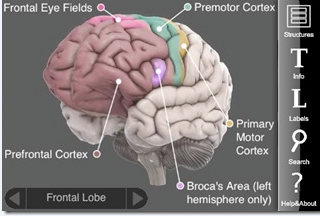
(3) Selecting the "T" Info provides an overview, case study, associated functions, cognitive disorders, damage, substructures. The Research Reviews at the very bottom of the Info page lists research articles that link to PubMed.
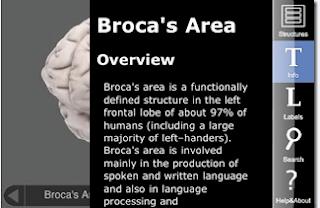
Download this app for free from the iTunes apps store.
Swiping your finger to the right/left or up/down on a brain image allows you to rotate the view. Pretty cool stuff!
Your brain will thank you for downloading this handy app.
Wednesday, October 28, 2009
Free Mind Mapping Tools
Oh boy - I've found some scrumptious free mindmapping tools that I need to share with you!
Mind mapping is a way to visualize concepts by drawing out associations between your ideas. It can be extremely useful as a brainstorming tool and even for teaching. It combines the textual and visual cognitive senses we use to help us understand concepts.
Two absolutely free and absolutely easy to use mind mapping tools are:
(1) bubbl.us - you don't need to set up an account. Simply click on the "Start Brainstorming"button.
The controls are intuitive. For example, hovering over the first box allows you to type in text. You can hover over parts of that box to show crosshairs that allow you to reposition the box wherever you want. The other hovering options allow you to add boxes stemming from the original. You can change the color of the boxes.
When you're done mapping, click on the Menu button at the bottom right of the screen. You can export the map you've created as an image, XML, or HTML file. Below is an example of a mind map I created using bubbl.us:
(2) SimpleMind Xpress - this is a free app for your iPhone or iPod Touch. There is a paid version, but I find the free one does a good job. You can upload your final mind map to your iTunes and then download it to your computer as a document.

This presentation below gives some helpful pointers on how to maximize the effectiveness of your mind mapping exercises.
Mind Mapping
View more presentations from Amir Saif .
Tuesday, October 27, 2009
Download the Clinician's Toolbar to Your Browser
Kudos to you if you've already downloaded the UCSF Library's Clinician's Toolbar to your desktop browser. If you've used our toolbars in the past, you may not know that there is a new and improved version of our toolbars.
Apologies for this mouse-sized image of the Clinician's Toolbar, but I wanted to point out what the advantages are of downloading this toolbar to your browser.

(1) Get quick access to the Library by clicking on the blue UCSF Library logo on the far left of the toolbar
(2) Go straight to frequently used resources, such as UpToDate
(3) Gain additional one-click access to our online journals, find articles, or get to Drug Info and Clinical Resources on the Library's web
If you click on the dropdown arrow on the left inside the toolbar's search box, you can choose to search PubMed and Google Scholar and even Google Images as some key resources available.
If you've got the old version of the Library's toolbar on your browser, uninstall that before installing the new version.
To download and find out more about the Clinician's Toolbar, go to http://www.library.ucsf.edu/services/browsertools and scroll down the page to see more info.
Monday, September 28, 2009
EdHeads Virtual Surgery Games
If you're not a real surgeon, but you want to play one (on the web), EdHeads.org has created a site that's just for you.

The EdHeads team creates educational interactive web modules. There are currently nine activities to choose from. The medically related ones are surgical deep brain stimulation, hip replacement, hip resurfacing, and knee surgery.
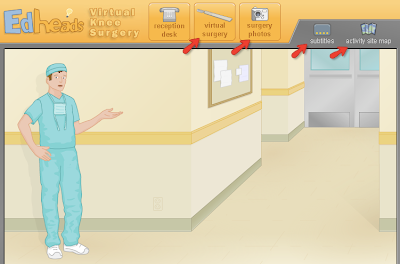
Once you've entered one of the surgical activities, you'll be taken from the Reception Desk into the hallway of the OR. A virtual surgeon will orient you to your patient and have questions for you to interact with and answer throughout the tutorial. You will be asked to select different surgical instruments and use them during the surgery.
The tutorial is narrated, but you can also select the Subtitles icon to see closed captioning. If you want to skip ahead to different parts of the tutorial, select the Activity Site Map icon.
If you have the stomach to view actual photos of the surgeries being described, click on the Surgery Photos icon.
Included with each activity is a Teacher's Guide to give you ideas of how to make the activities a useful learning tool for your students. There are sample quiz questions and answers, a glossary, and additional helpful resources on the topic.
If you're in the mood for something non-medical, check out the others, such as Designing a Cell Phone or learning how to predict and report the Weather.
Be inspired to have fun!
Thursday, August 27, 2009
Test Your Medical Knowledge Using Case Files in AccessMedicine
Looking to understand how to put all your medical knowledge into the bigger scheme of things? Tired of reading and memorizing facts and ready to put them to the test?
The AccessMedicine database is a good source to find Case Files to test your knowledge on real life clinical cases.
(1) Select either the Case Files tab or the Case Files for Students link (see image below)
(2) View the cases by Organ Systems or by Specialty
(3) After reading the details of the case, proceed to the Questions tab; select the View Answers link on the bottom of the page to see if you were correct
(4) The other topics covered with the case are Clinical Correlation, Comprehension Questions to further test your knowledge, clinical Pearls, and References to find out more information
The cases are from the LANGE Case Files series edited by Dr. Eugene C. Toy.
The AccessMedicine database is a good source to find Case Files to test your knowledge on real life clinical cases.
(1) Select either the Case Files tab or the Case Files for Students link (see image below)
(2) View the cases by Organ Systems or by Specialty
(3) After reading the details of the case, proceed to the Questions tab; select the View Answers link on the bottom of the page to see if you were correct
(4) The other topics covered with the case are Clinical Correlation, Comprehension Questions to further test your knowledge, clinical Pearls, and References to find out more information
The cases are from the LANGE Case Files series edited by Dr. Eugene C. Toy.

There is also a link to listen to free audio cases.
This Clinical Cases feature in AccessMedicine is ideal for teachers and students alike:
TEACHERS - browse the cases to get an idea of how to write your own case files for students
STUDENTS - apply and assess your knowledge of material you've covered; use these cases as a group discussion project to help you understand concepts.
View this brief non-narrated tutorial to see the Case Files feature in AccessMedicine.
Monday, June 29, 2009
DoctorCalc's Recommended Medical Apps for the iPhone
I recently found myself having dinner with a table full of medical residents and half of them owned iPhones. This came to light when it was time to calculate the tip for the dinner bill. The iPhone owners were scrolling to the Tip Calculator app on their phone.
Once the tip was squared away, I asked if they had any medical applications on their iPhone. There are a few that seem pretty nifty. So I looked to see if there are any listings of other medical apps for the iPhone and iTouch.
I found DoctorCalc.com - a site that provides nine different medical apps for the iPhone/iTouch. They look all to be free of charge.

The nine specific applications cover:
Medical Calculator, Normal Lab Values, Rapid Sequence Intubation, Vaccines, Sedation, Jaundice, Lab Unit Converter, Patient Tracker, and Swine Flu Tracker.
I know that there are plenty more medical apps out there for the iPhone. Some free and some for a purchase fee. I have not jumped on the iPhone bandwagon yet, so if you do have an iPhone and are curious to test out any of these apps, please leave a comment as to what you think of these. And feel free to provide your own recommended medical apps.
Perhaps someone out there can convince me that I need to become an iPhone convert. Until then, I'll be sitting on the front porch with my laptop and blog waiting to hear from you all!
Once the tip was squared away, I asked if they had any medical applications on their iPhone. There are a few that seem pretty nifty. So I looked to see if there are any listings of other medical apps for the iPhone and iTouch.
I found DoctorCalc.com - a site that provides nine different medical apps for the iPhone/iTouch. They look all to be free of charge.
The nine specific applications cover:
Medical Calculator, Normal Lab Values, Rapid Sequence Intubation, Vaccines, Sedation, Jaundice, Lab Unit Converter, Patient Tracker, and Swine Flu Tracker.
I know that there are plenty more medical apps out there for the iPhone. Some free and some for a purchase fee. I have not jumped on the iPhone bandwagon yet, so if you do have an iPhone and are curious to test out any of these apps, please leave a comment as to what you think of these. And feel free to provide your own recommended medical apps.
Perhaps someone out there can convince me that I need to become an iPhone convert. Until then, I'll be sitting on the front porch with my laptop and blog waiting to hear from you all!
Highlight webpages with The Awesome Highlighter
Sometimes you may want to send someone a link to a webpage. Instead of typing what's interesting about the content of that page in the body of your email, imagine that you could actually highlight the text or section of the webpage and annotate it. Well, there IS such a tool out there that allows you to do this.

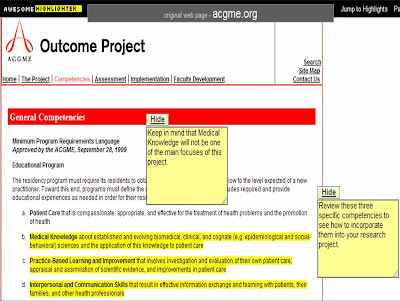

The Awesome Highlighter is just as its name implies - awesome. In a few simple steps, you can generate a URL that will take people to your highlighted webpage.
(1) Copy and paste in the URL of the webpage you want to highlight
(2) The page will appear inside an editing window. Use the yellow highlighter that appears in place of the cursor to select parts of the webpage you want to highlight.
(3) Click on the + add a note link at the upper right to place sticky notes that describe why you've highlighted that region. The notes can be moved around by holding them down and dragging them to another location on the page if you wish.
(4) Select the Done button at the top to complete the process.
(5) A URL will be generated that you can copy and paste or email. This URL will allow the viewer to get straight to the highlighted and annotated webpage.
For example, I highlighted a page from the Association of American Medical Colleges' Outcomes Project webpage that covers the residency competencies. Check it out at http://awurl.com/LsbVWSv6i
(1) Copy and paste in the URL of the webpage you want to highlight
(2) The page will appear inside an editing window. Use the yellow highlighter that appears in place of the cursor to select parts of the webpage you want to highlight.
(3) Click on the + add a note link at the upper right to place sticky notes that describe why you've highlighted that region. The notes can be moved around by holding them down and dragging them to another location on the page if you wish.
(4) Select the Done button at the top to complete the process.
(5) A URL will be generated that you can copy and paste or email. This URL will allow the viewer to get straight to the highlighted and annotated webpage.
For example, I highlighted a page from the Association of American Medical Colleges' Outcomes Project webpage that covers the residency competencies. Check it out at http://awurl.com/LsbVWSv6i
Now go out there and dazzle your friends and colleagues by what you can create with The Awesome Highlighter!
Friday, May 29, 2009
Yale Image Finder
Gosh - I love technology! Think of an idea, and most likely someone's come up with an answer. Or at least a pretty awesome prototype.
YALE IMAGE FINDER is a search tool that allows you to look for images and figures from free full-text articles in the PubMed Central database of Open Access articles.
This tool debuted in July 2008 as a project of the Krauthammer Lab of the Yale Pathology Informatics Department that specializes in text mining and translational informatics.
View this short narrated tutorial on how to search Yale Image Finder:

The Krauthammer Lab published a paper that describes their search algorithm:
ABSTRACT: Yale Image Finder (YIF) is a publicly accessible search engine featuring a new way of retrieving biomedical images and associated papers based on the text carried inside the images. Image queries can also be issued against the image caption, as well as words in the associated paper abstract and title. A typical search scenario using YIF is as follows: a user provides few search keywords and the most relevant images are returned and presented in the form of thumbnails. Users can click on the image of interest to retrieve the high resolution image. In addition, the search engine will provide two types of related images: those that appear in the same paper, and those from other papers with similar image content. Retrieved images link back to their source papers, allowing users to find related papers starting with an image of interest. Currently, YIF has indexed over 140,000 images from over 34,000 open access biomedical journal papers.
URL: http://krauthammerlab.med.yale.edu/imagefinder/
Saturday, February 28, 2009
Learn Anatomy with WinkingSkull.com
Looking for a good learning tool to help you learn and test yourself on human anatomy? The WinkingSkull.com offers just that!

This free resource has detailed color images from the Atlas of Anatomy. When you create a free account, you get the full capability to test yourself on what you've learned.
(1) Go to the "My Account" link at the top right to create a free account
(2) Select the region of the body that you're interested in viewing via the left menu
(3) Select the labels to be "ON"
(4) You can also view the labels in Latin by selecting the "US English" box at the top right and switch to "Latin"
(5) You can zoom in and out, as well as hold down the mouse and move around the picture
(6) When you are signed into your account, you can test your knowledge of the anatomy you've reviewed
Be sure to check out their Quick Tips link in the top menu bar.
Watch this short non-narrated video to view these features [click on the "full size" link].

Friday, January 30, 2009
Wordle to Create a Visual Cluster of Concepts
I celebrated my birthday on January 20th. What a day! The entire day, I felt like a surfer riding a never-ending wave, thrilled and exuberant. Sitting with a large UCSF crowd on campus, I watched President Obama's swearing in and Inaugural Address . The celebration that day didn't stop until I finally turned off the tv after NightLine.
So what's this big prelude leading to? I wanted to share a novel tool called Wordle that allows you to paste in any text and have it create a visual representation, called a word cloud, of the major themes of the content. I tried Wordle out for the first time by pasting in the transcript of Obama's Inaugural Address. Below is the word cloud generated.
Creating the word cloud is very easy:
(1) Go to http://www.wordle.net & select the Create link at the top
(2) Paste in text or the URL of the site you want to Wordle
(3) Select Go or Submit
(4) When the word cloud is generated, you can change the layout, font, and color
I also created a word cloud of an abstract for the article below:
Dunn, LB, Iglewicz, A, & Moutier, C. (2008). A conceptual model of medical student well-being: promoting resilience and preventing burnout. Academic psychiatry, 32(1), 44-53.
Have fun with Wordle! It paints a picture that gives words an extra dimension.

So what's this big prelude leading to? I wanted to share a novel tool called Wordle that allows you to paste in any text and have it create a visual representation, called a word cloud, of the major themes of the content. I tried Wordle out for the first time by pasting in the transcript of Obama's Inaugural Address. Below is the word cloud generated.

Creating the word cloud is very easy:
(1) Go to http://www.wordle.net & select the Create link at the top
(2) Paste in text or the URL of the site you want to Wordle
(3) Select Go or Submit
(4) When the word cloud is generated, you can change the layout, font, and color
I also created a word cloud of an abstract for the article below:
Dunn, LB, Iglewicz, A, & Moutier, C. (2008). A conceptual model of medical student well-being: promoting resilience and preventing burnout. Academic psychiatry, 32(1), 44-53.

Have fun with Wordle! It paints a picture that gives words an extra dimension.
Friday, November 21, 2008
Using Eigenfactor to Measure Journal Ranking

Eigenfactor is a free tool developed by Carl Bergstrom's lab at the University of Washington. It measures the impact of a journal based on the number of citations as well as journal pricing. They describe themselves as:
(1)
(2) Eigenfactor.orgTM reports journal prices as well as citation influence.
(3) Eigenfactor.orgTM contains 115,000 reference items.
Eigenfactor.org not only ranks scholarly journals in the natural and social sciences, but also lists newsprint, PhD theses, popular magazines and more. In so doing, it more fairly values those journals bridging the gap between the social and natural sciences.
(4) Scores adjust for citation differences across disciplines.
(5) Scores rely on 5-year citation data.
(6) Scores are completely free and completely searchable.
Read more detailed explanations at http://www.eigenfactor.org/whyeigenfactor.htm
I especially like their visual mapping search display that animates the relevancy of topics and journals. You can get to this interface by clicking on the "mapping" tab and choosing the "interactive browser" option. In the right side of each visual map result, the top ten journals in that field are listed. Clicking on a journal title will reveal its Eigenfactor score.
The Journal Citation Reports (JCR) is a paid database from ISI Web of Knowledge that the Eigenfactor is comparing itself to, but they claim with added value. View the publisher's tutorial of how to search JCR. (Note: click on the white arrow in the bottom green menu bar to forward to the next page of the tutorial).
Read a more scholarly description of the Eigenfactor at http://scholarlykitchen.sspnet.org/2008/07/23/eigenfactor/
Friday, October 31, 2008
My First Venture into Video
I recently attended the Internet Librarian Conference in Monterey, CA. It was an energetic gathering of tech savvy librarians from across America sharing their knowledge and enthusiasm of what they've created for new ways to deliver and find information online.
I attended several sessions covering how to make video podcasts. The idea of making things really come to life with video sounds just plain fun! So I put myself to work and play.
I found a free video editing program online called Jumpcut by Yahoo. It's a great first tool for me to try out because all I had to do was to upload videos and images onto the web. I could easily edit the video and add audio and text. The file is automatically compressed to the right size without me having to know anything about how to do that.
So here are the results of my first Jumpcut videos:
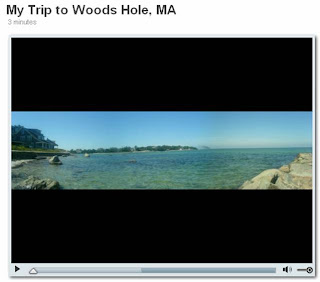
The video of Woods Hole, MA is taken from my camera phone, thus the indie "live action" bumpiness of walking and talking. The video is about twice as large as the original video display, so the film is slightly grainy, but you get a feel of what Jumpcut can do with video from a cell phone.
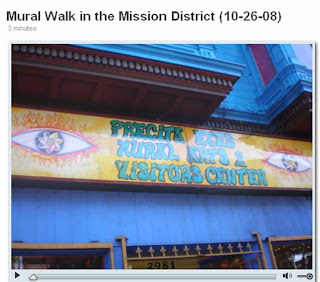
The Mission mural walk video was made from my digital camera photos.
If you're thinking of making videos to host on the web and want to start practicing, I'd highly recommend Jumpcut as a fast and easy tool to try. Have fun!
I attended several sessions covering how to make video podcasts. The idea of making things really come to life with video sounds just plain fun! So I put myself to work and play.
I found a free video editing program online called Jumpcut by Yahoo. It's a great first tool for me to try out because all I had to do was to upload videos and images onto the web. I could easily edit the video and add audio and text. The file is automatically compressed to the right size without me having to know anything about how to do that.
So here are the results of my first Jumpcut videos:
The video of Woods Hole, MA is taken from my camera phone, thus the indie "live action" bumpiness of walking and talking. The video is about twice as large as the original video display, so the film is slightly grainy, but you get a feel of what Jumpcut can do with video from a cell phone.
The Mission mural walk video was made from my digital camera photos.
If you're thinking of making videos to host on the web and want to start practicing, I'd highly recommend Jumpcut as a fast and easy tool to try. Have fun!
CDC Statistics and Slide Sets
The CDC website has a fantastic collection of statistical data. There is a goldmine of information, but it takes some exploring to unearth these hidden gems.
Here are different ways of getting to stats from the CDC homepage:
(1) Browse the topics under the Data & Statistics section on the right side of the CDC homepage.
(2) Under the Diseases & Conditions section, a statistics link is often in the left margin of major health topic pages. For example, Heart Disease.
(3) Browse the Injury, Violence & Safety section for statistical information in the left margins of the topic pages. For example, Injury Data and Maps.
View this short narrated video below that shows how to find statistics and slide sets on particular topics.

Here are different ways of getting to stats from the CDC homepage:
(1) Browse the topics under the Data & Statistics section on the right side of the CDC homepage.
(2) Under the Diseases & Conditions section, a statistics link is often in the left margin of major health topic pages. For example, Heart Disease.
(3) Browse the Injury, Violence & Safety section for statistical information in the left margins of the topic pages. For example, Injury Data and Maps.
View this short narrated video below that shows how to find statistics and slide sets on particular topics.
Subscribe to:
Posts (Atom)